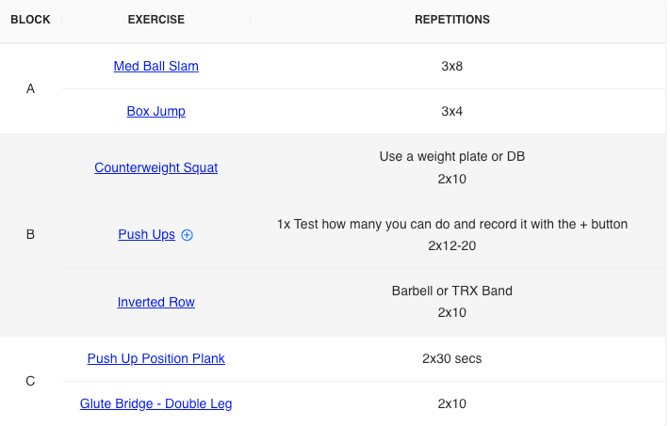
How to View a Program as a Team
Step 1: Navigate to Program Viewer
- On the left sidebar, scroll down to the Programming section and click Programs
Step 2: Select Your Program
- At the top of the Program Viewer, use the Program Name dropdown to select the program you are currently working on.
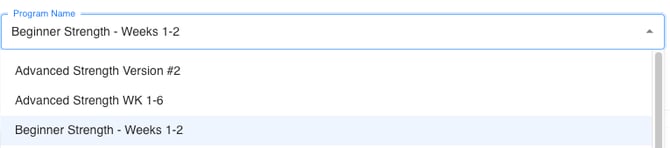
Step 3: Choose Your Week and Day
- Once you’ve selected your program, use the Week dropdown to choose which week you’re on, and the Day dropdown to select the specific day of your workout.

Step 4: View Your Program
- After selecting the week and day, your workout will display automatically on the screen.
You’ll see the program organized by blocks, exercises, and repetitions, along with any notes or instructions your coach included. - Expand the View
- Once the program loads, you can hide the left sidebar to view the program in full page mode for a cleaner display.
- Display or Print the Program
-
The program can now be displayed in several ways:
-
On an iPad for easy scrolling during sessions
-
On a TV or projector for team-wide viewing
-
Printed using the Print button on your laptop for physical reference
-
-