
Accessing Reports
-
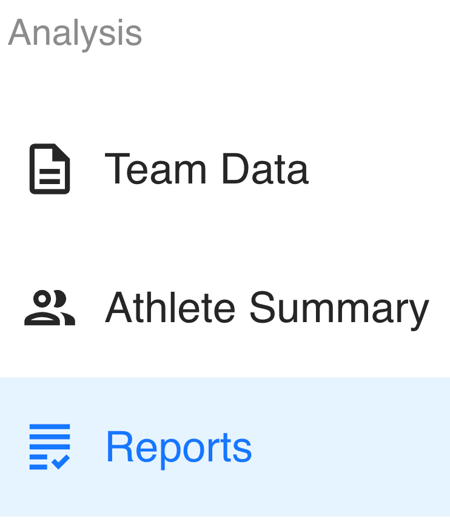
Navigate to the left-hand sidebar in Tully
-
Find the Analysis Section
-
Select Reports from the dropdown menu
Viewing Reports
-
The View Reports page displays all published reports
-
If this is your first time using the feature, no reports will appear
To get started, click Manage Reports using one of the following options:
-
The blue Manage Reports button in the top right
-
The Get started notification in the center of the screen

Managing Reports
The Manage Reports page is where you create, edit, and organize reports.
Filters Available
- Name
- Status (All, Draft, Published, Archived)
- Metrics and Assessments
Use these filters to quickly find specific reports.

Creating a Report
-
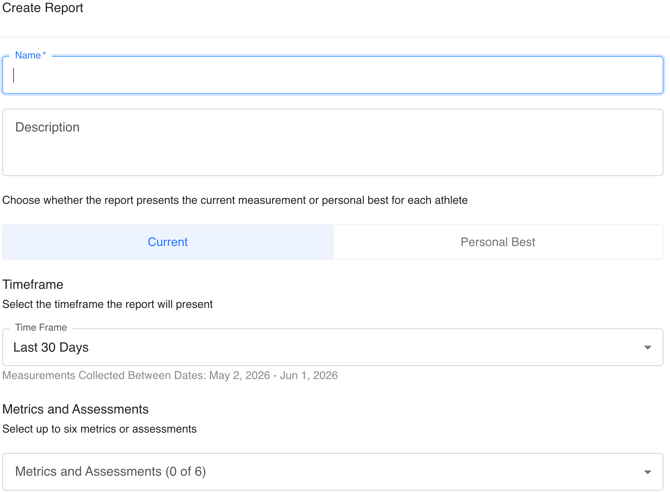
Click the blue Create Report button (located below the filters)
- Fill out the report details
- Name, Description
- Data Type Toggle
- Choose between Current or Personal Best values
- Time Frame
- Options include:
- Last 30 days, Last 60 days, Last 90 days, Last year, All time, Custom range
- Options include:
- Metrics & Assessments
- Select up to 6 total metrics or assessments
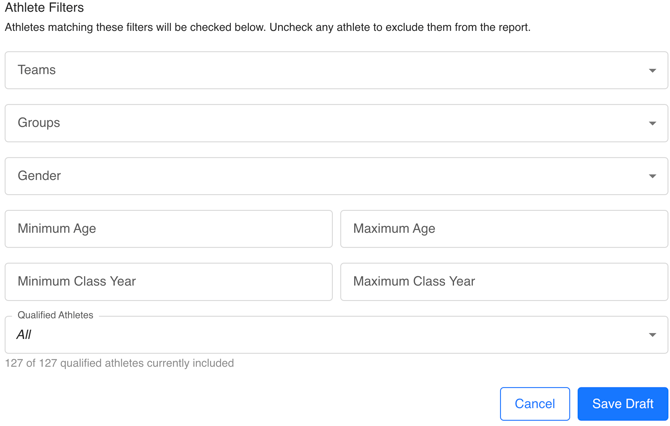
- Athlete Filters
- Teams, Groups, Age range (min and max), Class year range (min and max),
- Qualified athletes
- You can refine your report further by selecting exactly which athletes to include.
- Click Save Draft
Manage Reports Table
After saving, your report will appear in the Manage Reports table.
Table Columns
- Name
- Status (Draft, Published, Archived)
- Athletes (number included)
- Timeframe
- Metrics/Assessments
- Publish Date
New reports are saved as Drafts until published.

Managing Existing Reports
Quick Actions
- Edit (Pencil Icon): Modify the report
- Publish (Paper Airplane Icon): Publish the report
More Options (Ellipses Menu)
- Preview & Print: View a printable version
- Publish Report
- View Summary: Overview of report contents
- Clone: Duplicate the report
- Archive: Hide the report from users
- Delete: Permanently remove the report
Publishing a Report
- Click the Publish icon or select Publish Report
- The report status will update to Published
- The Publish Date will automatically populate
Viewing a Published Report
- Click View Reports (top right of Manage Reports page)
- Select your report
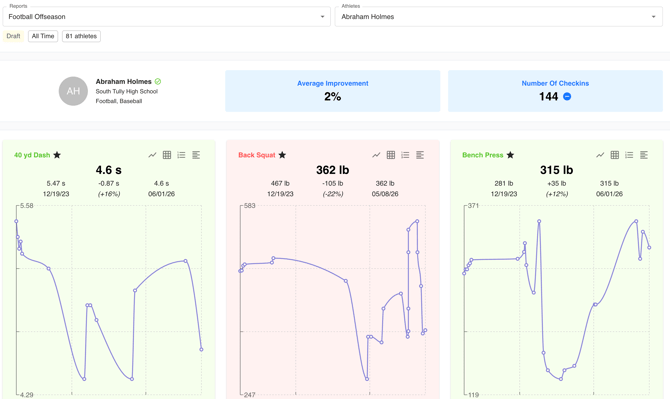
What You’ll See
- Report title
- Date range
- Number of athletes included
- Athlete selector (to view individual results)
- Report selector (if multiple reports exist)
The report updates dynamically based on the selected athlete.
Printing Reports
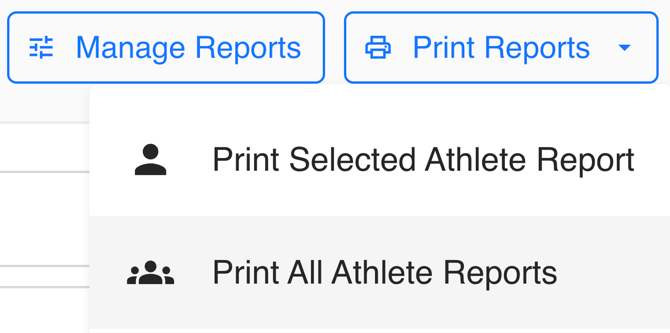
- Click Print Reports (top right of View Reports page)
- Choose one:
- Print Selected Athlete Report
- Print All Athlete Reports
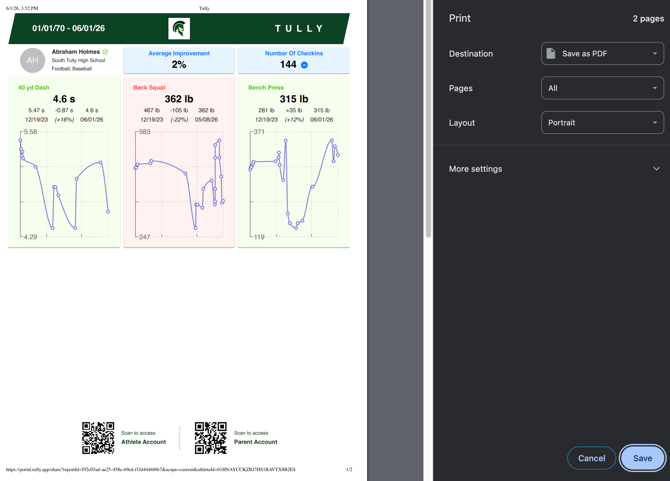
This will open a new page and automatically trigger the print dialog, where you can:
- Save as PDF
- Print physically
- Choose other print options
Why Use Reports?
The primary purpose of Reports in Tully is to help you tell a clear story with your data. By selecting specific metrics and assessments over a defined time period, you can evaluate performance, track progress, and communicate results in a meaningful way.
Common use cases include:
- Evaluating a summer or off-season training program
- Assessing the effectiveness of a specific training cycle
- Reviewing progress for a youth or private training group
- Sharing performance updates with athletes and parents
- Creating internal reports to analyze your training methods and improve your program
Reports give you a tangible and insightful way to present results, whether you are sharing externally or using them internally to refine your process.