
Left-Hand Sidebar Navigation
The left-hand sidebar is your primary navigation tool within Tully.
Tully Home (Top Left)
At the very top of the sidebar, you will see the Tully name and banner image.
- Clicking this will take you to the Tully Landing Page
- The landing page contains multiple interactive widgets that provide quick insights and shortcuts
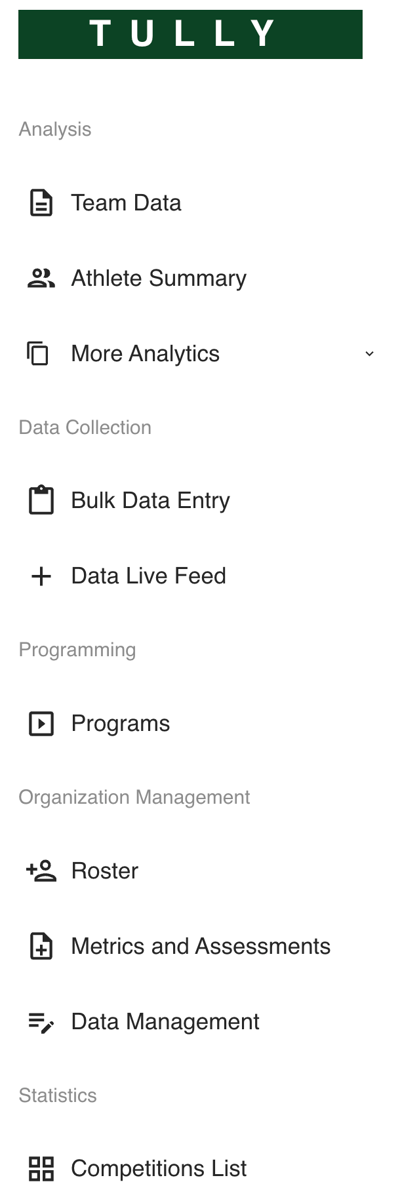
Main Navigation Sections
1. Analysis
-
This section is focused on viewing and interpreting data
-
Core Features
-
Team Data
-
Athlete Summary
-
-
More Analytics (Dropdown)
-
Tully Scores
-
FMS (if enabled)
-
Metric Navigator
-
Assessment Navigator
-
Progression
-
Attendance Summary
-
Daily Attendance
-
Reports
-
Pulse
-
Leaderboards
-
-
2. Data Collection
-
This section is used to input and visualize live data
-
Features
-
Bulk Data Entry
-
Data Live Feed
-
-
3. Programming
-
This section is where you manage training programs
-
Feature
-
Programs
-
-
4. Organization Management
-
This section is used to manage the structure and data of your organization
-
Features
-
-
-
-
Roster
-
Metrics & Assessments
-
Data Management
-
-
5. Statistics (If Enabled)
-
This section is only visible if enabled on your organization.
-
Feature
-
Competitions List - Insights about game or match data
-
-
Top Right Navigation
In the top right corner of Tully, you will find several quick-access tools:
Plus Button (+)
- Collect Data
- Show Timer
Organization QR Code
-
Provides access to your organization’s QR code for quick check-ins or sharing
Question Mark (Help Menu)
-
This is your main hub for support, education, and contacting the Tully team.
-
User Manual
-
Help Desk
-
Send Us a Message
-
User Profile (Your Name)
-
Clicking your name opens account and organization options:
-
My Profile
-
Organization Settings
-
Switch Organization
-
Log Out
-
Summary
Tully is organized to give you fast access to:
-
Data insights through Analysis
-
Data input tools through Data Collection
-
Training programs through Programming
-
Organizational controls through Organization Management
-
Competitive tracking through Statistics (if enabled)
The top right menu provides quick actions, support resources, and account management options.
Understanding this layout will help you move through Tully efficiently and take full advantage of everything the platform offers.