
How to Access the Team Data Report
-
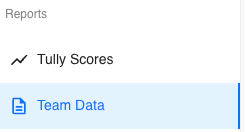
On the left sidebar, navigate to the Reports section.
-
Click on Team Data to open the report view.
Filters Overview
At the top of the page, you’ll find several filters that allow you to narrow down your results. These filters function exactly the same as across the rest of the Tully platform.
The available filters include:
-
Teams: Select all teams, specific teams, or clear your selection.
-
Groups: Choose one or more groups or view all groups.
-
Gender: Filter by male, female, or clear to view both.
-
Years: Select specific years or view all.
-
Active/Inactive: Choose to view only active athletes, inactive athletes, or both.
-
Age Range: Filter by specific age brackets.
-
Time Frame: Select a specific date range to view performance data within that window.

💡 These filters can be used in combination to focus on specific data sets. For example, a coach could filter down to the Football Team, then select the Wide Receiver group, view only Active Athletes, and set the Time Frame to the last six months.
Summary Dashboard
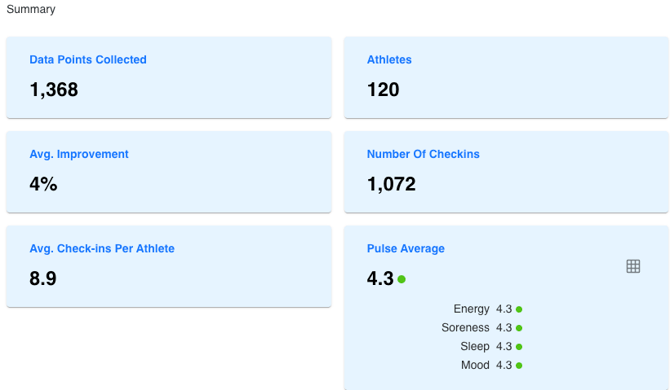
The Summary section displays high-level insights for the selected filters.
- Data Points Collected: Total number of data entries collected within the chosen time frame.
- Athletes: Number of athletes represented in the current data set.
- Average Improvement: Displays the team’s average performance change as a percentage.
- Number of Check-ins: Total athlete check-ins recorded within the selected period.
- Average Check-ins per Athlete: Average attendance or participation rate per athlete.
- Pulse Average: Shows the average wellness rating across all athletes, including subcategories for: Energy, Soreness, Sleep, & Mood
Metrics Overview
Below the summary section, coaches can view Favorite Metrics and All Metrics that have data collected in Tully. Each metric is displayed in a dedicated widget, allowing for multiple views and interactions.
Within each metric widget, coaches can:
-
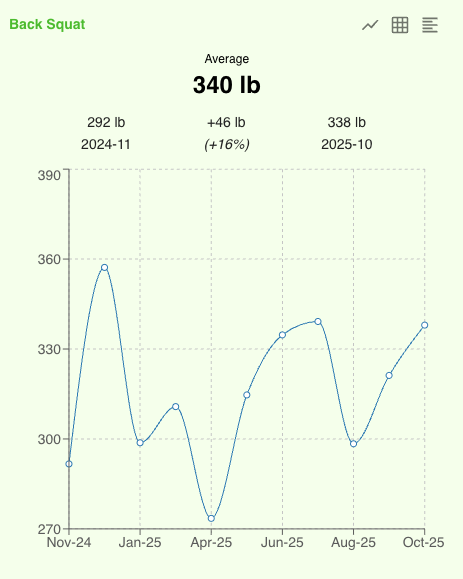
View a Line Chart to visualize change over time.
-
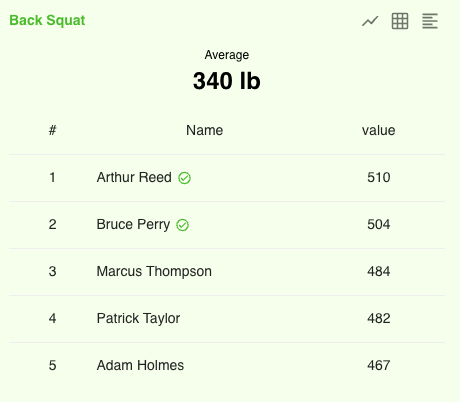
View Table Mode to see top values and rankings.
-
Read the Description for that metric to understand its context.

At the top right of the metrics section, toggle between:
-
Current: Displays the most recent recorded values.
-
Personal Best: Displays the best historical values for each metric.

Metrics with No Data
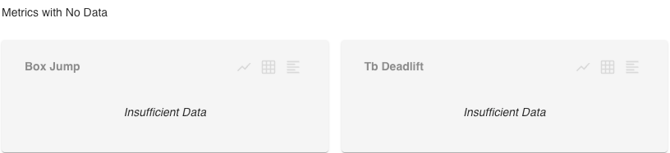
At the bottom of the page, the Metrics with No Data section lists all metrics that have been created but do not yet have any recorded results.
This area acts as a tracker, helping coaches identify which metrics may need to be removed or are planned for future use.
How Coaches Use Metric Data
A coach could use the Team Data report to analyze wellness and performance trends for their Football Team. By filtering to Active Athletes, selecting the Wide Receiver group, and narrowing the Time Frame to the last six months, they can quickly see:
-
Average wellness scores by category
-
Improvement in performance metrics
-
Attendance and check-in rates
This data helps coaches make informed decisions about training loads, recovery, and readiness.