
Step 1: Navigating to Data Live Feed
-
On the left-hand sidebar, navigate to the Data Collection section.
-
Click on ➕ Data Live Feed.
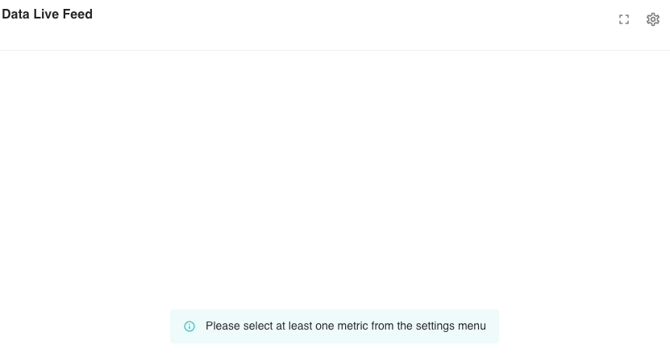
When you first open Data Live Feed, the page will appear blank with a message prompting you to select at least one metric.
Step 2: Adjusting Data Collection Settings
To configure what data displays in your live feed:
-
Click the ⚙️ gear icon in the top right corner to open Data Collection Settings.
-
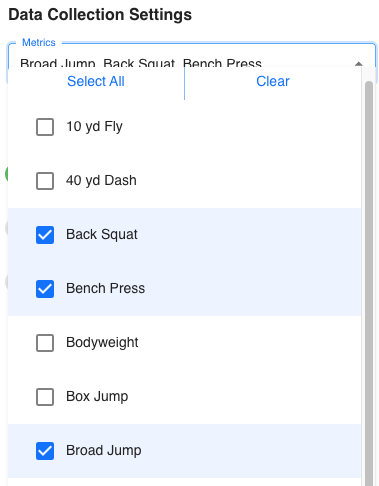
In the Metrics dropdown, select one or more metrics you want to display. You can also use Select All or Clear to manage your selections quickly.
-
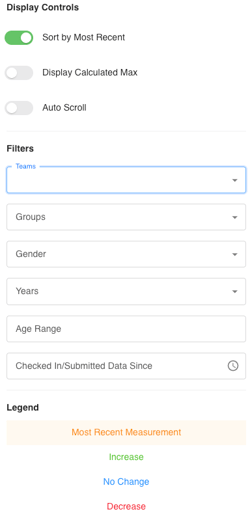
Use the Display Controls section to customize how the feed behaves:
-
Sort by Most Recent – toggles the feed to show the latest data entries at the top.
-
Display Calculated Max – shows calculated maximums if applicable to the selected metric.
-
Auto Scroll – automatically scrolls through the live data feed.
-
Use Filters to narrow the displayed data - Teams, Groups, Gender, Years, Age Range, Checked In/Submitted Data Since
-
Understanding the Legend
At the bottom of the settings menu, you’ll find a Legend that explains the color coding in the Data Live Feed:
-
Orange – Most recent measurement
-
Green – Increase
-
Blue – No change
-
Red – Decrease
This helps coaches and athletes instantly recognize performance changes.
Viewing Data in Real Time
Once your metrics are selected, your data will begin displaying in real time.
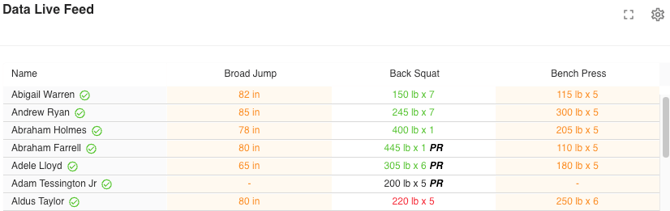
💯 The feed automatically updates as athletes submit data from any device. Each athlete’s most recent measurement before this week is also shown for quick reference.
Display Options for Coaches
At the top right of the Data Live Feed, additional tools appear for presentation and engagement:
-
Stopwatch icon – Displays a stopwatch that can be moved anywhere on the screen.
-
A+ / A– icons – Adjust zoom level to enlarge or reduce the data table view.
-
Square icon – Enables Full Screen Mode for better visibility during sessions.
These options make it easy to display the feed on screens, projectors, or tablets during training sessions.
Use Case
The Data Live Feed is most effective when displayed in the weight room. It brings an element of visibility and competition to training sessions. When athletes see their data update live, it motivates them to perform and improve — creating a dynamic environment where effort and progress are both visible and celebrated.