
How to Access the Pulse Report
-
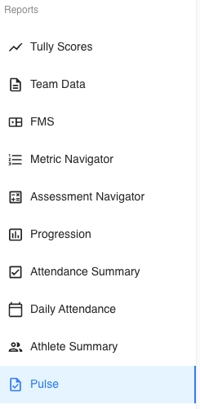
Navigate to the left-hand sidebar in Tully.
-
Under the Reports section, select Pulse.
Understanding the Pulse Summary
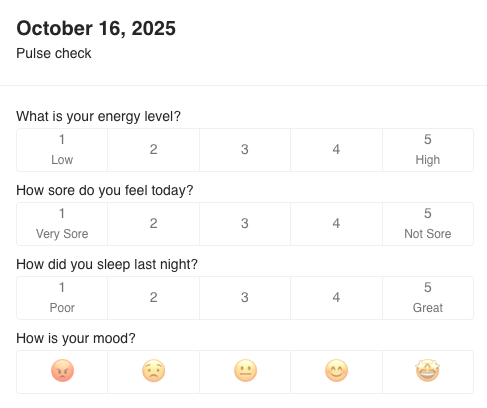
The Pulse Summary displays aggregated wellness data submitted by athletes through the Pulse Survey. This survey automatically appears to athletes during check-in and asks them to rate four key areas from 1 to 5:
-
Energy: 1 = low, 5 = high
-
Soreness: 1 = very sore, 5 = not sore
-
Sleep: 1 = poor, 5 = great
-
Mood: 1 = low, 5 = great
Each score provides insight into how athletes are feeling on a daily basis. The Average column gives a quick overview of overall wellness for that day.
Filters Overview
At the top of the Pulse page, you’ll find the following filters:
-
Teams: Choose one or multiple teams to narrow your data view to specific team rosters.
-
Groups: Filter results by assigned training groups within teams.
-
Gender: Allows filtering athletes by gender.
-
Years: Filter by athlete class or graduation year.
-
Active/Inactive: Toggle between currently active athletes or inactive athletes in your organization.
-
Age Range: View data for athletes within a specific age range.
These filters operate the same across all Tully reports to maintain a consistent experience.
Calendar and Low Pulse Scores
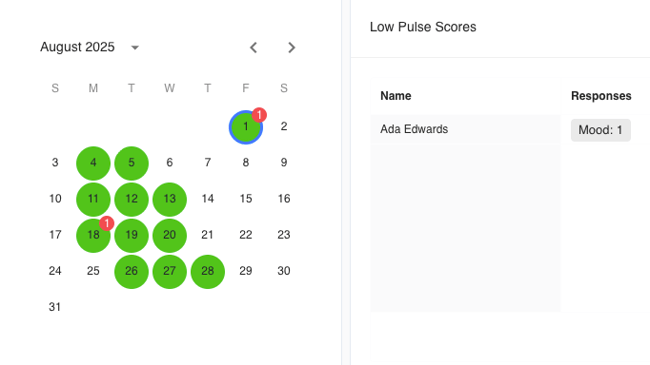
On the left side of the Pulse dashboard, you’ll see a calendar displaying submission activity by day.
-
Green Dots: Represent days with Pulse survey submissions.
-
Red Indicators: Represent days where one or more low scores were recorded.
Next to the calendar, you’ll find a Low Pulse Scores table.
This table lists any athlete who submitted a low score along with which question was flagged.
This helps coaches quickly identify athletes who may need extra attention, recovery time, or a check-in conversation.
Pulse Data Table
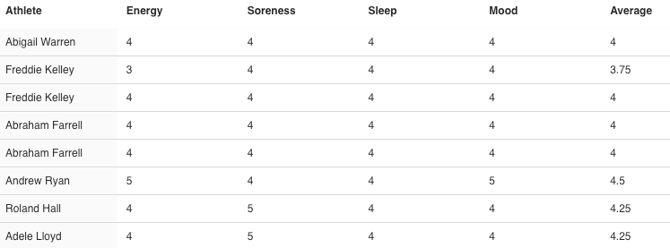
At the bottom of the page, you’ll find the Pulse Data Table, which lists individual athlete submissions for the selected date.
Columns include:
-
Athlete: The athlete’s name.
-
Energy: Reported energy level.
-
Soreness: Reported soreness level.
-
Sleep: Reported sleep quality.
-
Mood: Reported mood level.
-
Average: The calculated average of all four responses.
Each column can be sorted ascending or descending, allowing you to quickly identify who may be struggling or excelling in their wellness scores.
How Coaches Use Pulse Data
The Pulse Report helps coaches and staff:
-
Identify recovery or fatigue trends across individuals or groups.
-
Adjust training intensity or session structure in response to athlete readiness.
-
Initiate conversations with athletes who show low Pulse scores to address stress, fatigue, or other factors.
-
Track overall team wellness throughout the season to improve performance and retention.
By reviewing these insights regularly, coaches can support both physical and mental aspects of athlete development.