
What is the Complete Day button?
When viewing a program in Tully, a blue Complete Day button appears in the top right corner of the program page. The button includes a circle with a checkmark.
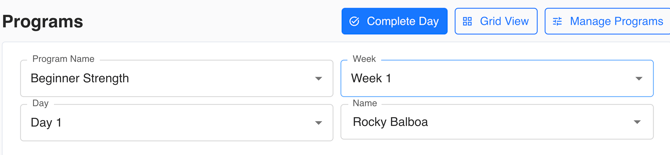
Athletes use this button to mark a specific training day as complete after finishing their lift.
How to complete a program day
- Open the program page.
- Select the Program Name.
- Select the Week.
- Select the Day within that week.
- Complete the training session.
- Click the blue Complete Day button in the top right corner.
For example, an athlete may select:
Program Name > Week 1 > Day 1
After completing Day 1, they click Complete Day.
What happens after a day is completed?
Once a day is marked complete:
- The blue Complete Day button changes to a Revert Completion button.
- A timestamp appears next to the button.
- The timestamp says Last Complete followed by the date the day was completed.
This allows both the athlete and coach to quickly see that the training day was completed and when it was completed.
Completing Additional Days
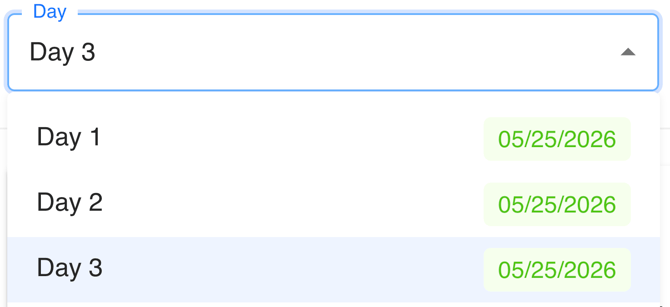
If the athlete changes the filters to another day, such as Week 1 > Day 2, the blue Complete Day button will appear again for that specific day.
Each day must be completed individually.
Weekly Completion Status
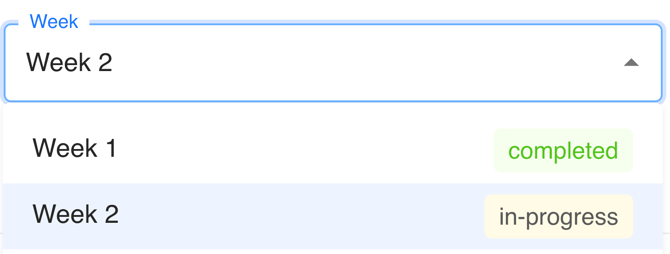
As athletes complete days within a week, the week status will show as In Progress.
Once all training days assigned to that week have been completed, the week dropdown status changes to Completed.
This gives athletes and coaches a clear visual confirmation that every day in that week of the program has been finished.
Reverting a Completed Day
Let's say you want to re-use the same program training day in the future, or you completed a day by accident. In order to revert the completion status simply click the Revert Completion button and that will take the completed status away.

Viewing Athlete Program Completion History
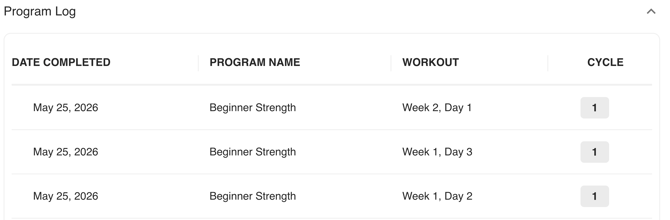
Coaches can view an athlete’s completed program activity directly from the Athlete Summary page in Tully.
This allows coaches to quickly identify:
- What workouts an athlete has completed
- When workouts were completed
- Which program the athlete was following
- Which week and day were completed
- What training cycle the athlete was in
How to view an athlete’s program log
- Open the Athlete Summary page.
- Find the athlete of interest
- Scroll to the bottom of the page.
- Locate the Program Log section.
- Click to expand the dropdown.
Note: The Program Log section is collapsed by default.
Once expanded, a table will appear displaying the athlete’s completed workouts.
Why This is Useful
The Program Log gives coaches visibility into athlete accountability and training consistency.
Coaches can quickly verify:
- Whether athletes are completing assigned workouts
- How consistently athletes are progressing through their programs
- Where athletes currently are within a training cycle
- If athletes have missed workouts or training days