
How to Access the Metric Navigator
-
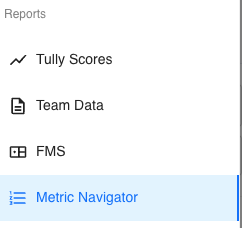
On the left sidebar, navigate to the Reports section.
-
Click on Metric Navigator to open the report view.
Filters Overview
At the top of the page, you’ll find several filters that allow you to narrow down your results. These filters function exactly the same as across the rest of the Tully platform.
The available filters include:
-
Metric: Select one metric to view data for.
-
Teams: Choose all teams or specific ones.
-
Groups: Filter by one or multiple groups.
-
Gender: Select male, female, or both.
-
Years: Narrow results by graduation or training year.
-
Active/Inactive: Toggle between current or inactive athletes.
-
Age Range: Filter by a specific age range.

💡 To the right of the time frame filter, there’s a toggle switch that allows you to view Current or Personal Best results.
-
Current displays the latest submission for each athlete.
-
Personal Best shows their top performance for the selected metric.
Understanding the Table
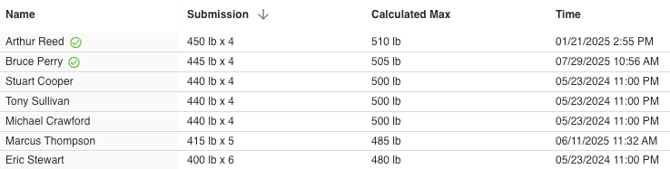
Below the filters, the data table displays assessment results in an easy-to-read format.
The default columns include:
- Name: The athlete’s name.
- Submission: The most recent submitted value for the selected metric.
- Calculated Max: The estimated maximum value (for lifts or strength metrics).
- Time: The date and time when the submission was recorded.
Customizing and Exporting Data
-
🚛 Export – Use the Export button above the table to download the displayed data for external review or reporting.
-
🔧 Manage Columns – Click the ellipses (three dots) on the top right of the table to manage which columns are visible. This allows you to add more detailed data or remove columns for a simpler view.
How Coaches Use Metric Data
Coaches often use the Metric Navigator to quickly review athlete performance on a specific lift or exercise. For instance, filtering by Back Squat shows all athlete submissions and calculated maxes—perfect for identifying trends or creating a team leaderboard.