
Step 1: Navigate to the Roster Page
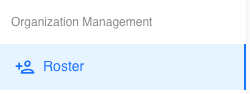
From your Tully dashboard, look at the left sidebar. Scroll down to the Organization Management section and click on Roster.
Step 2: Open the Add Person Form
Once inside the Roster page, you’ll see several filters along the top. In the top right corner, click the blue + Add Person button.

Step 3: Enter Athlete Details
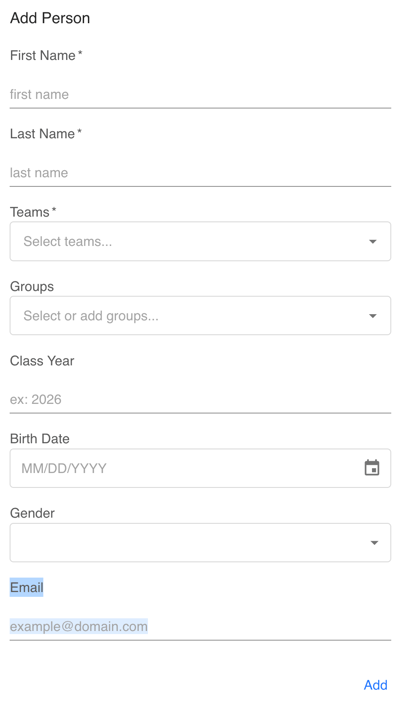
A new form will appear where you can input the athlete’s information.
Required fields:
-
First Name
-
Last Name
-
Teams
Optional fields:
-
Groups: Assign to existing groups or create new ones.
-
Class Year: The athlete’s expected graduation year.
-
Birth Date: Enter date of birth (MM/DD/YYYY format).
-
Gender: Choose Male, Female, or Prefer not to say.
-
Email: Enter the athlete’s contact email.
Step 4: Add the Athlete
After filling in the details, click the blue Add button in the bottom right corner.
Your athlete is now successfully added to your Tully organization.
Tips
-
Make sure to assign each athlete to the correct team for accurate reporting and tracking.
-
You can always edit athlete details later through the Roster page by clicking the edit pencil next to their name.