
Step 1: Navigate to Metrics and Assessments
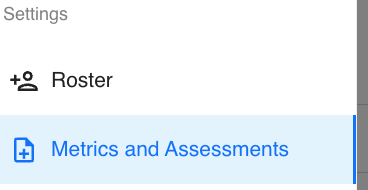
On the left-hand sidebar, scroll down to the Settings section and click Metrics and Assessments. This will open your Metrics Table, displaying all the existing metrics in your organization.
Step 2: Locate and Edit the Metric
Find the metric you want to update within the table.
To make basic edits such as assigning different teams or changing unit preferences, click the pencil icon next to the metric.
You can now:
-
Reassign the metric to new or different teams.
-
Update the Unit Preference (e.g., change from kilograms to pounds, or feet to inches).
-
Save your changes by clicking the blue Save button.

Step 3: Edit the Metric Description or Add to Favorites
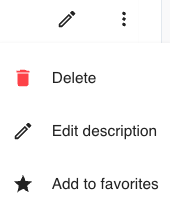
For more advanced options, click the three-dot ellipses icon on the far right of the metric row.
From this menu, you can:
-
Delete the metric (trash can icon)
-
Edit description (pen icon)
-
Add to favorites (star icon)
Important Notes
-
You cannot change the metric name or category. If you need to rename a metric or change its category, you’ll need to create a new metric instead.
-
Always review your edits before saving to ensure data consistency across teams.
Example Use Case:
If you previously tracked “Broad Jump” in feet and Inches, but now want to record it in inches, simply edit the Unit Preference to “inches” and save your changes.