
Before You Start: Set Up Favorite Metrics
Shared Athlete Summary reports are built entirely from favorited metrics. Only six items can appear on the report, so it is important to choose these intentionally before creating the report.
What to Know
-
Only favorited metrics appear on the shared report
-
A maximum of six metrics can be displayed
-
The report reflects the data exactly as shown in the Athlete Summary, including the selected date range
Step 1: Favorite Metrics
-
From the left-hand sidebar in Tully, navigate to Settings
-
Click into Metrics & Assessments
-
Locate the metric you want to include
-
On the right-hand side, click the ellipsis menu
-
Select Add to favorites by clicking the star icon
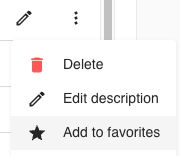
If a metric has a star next to it, it is marked as a favorite and is eligible to appear on the shared report.
Repeat this process until you have favorited up to six metrics.
Step 2: Navigate to Athlete Summary
-
From the left-hand sidebar, click Athlete Summary
-
Use the dropdown to select the athlete you want to create a report for
-
Confirm that the favorite metrics shown are correct and reflect what you want to share

Step 3: Select a Date Range
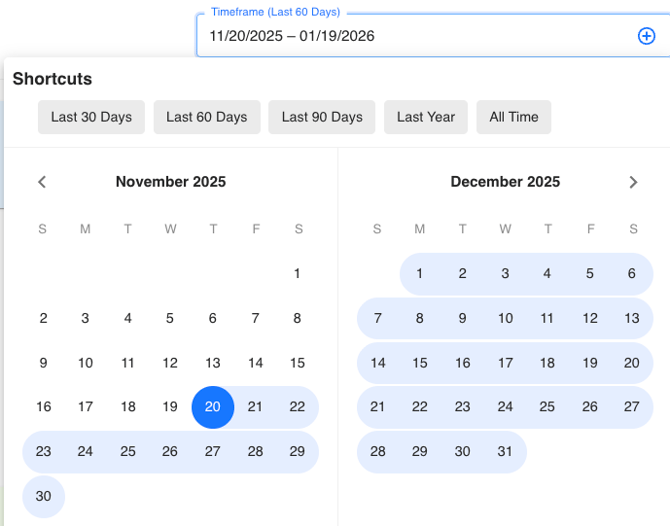
At the top of the Athlete Summary, use the From and To date selector to define the reporting window.
-
If no date range is selected, the report will include all-time data
-
If a date range is selected, only data within that range will appear on the report
Example:
-
Selecting January 1, 2025 to January 1, 2026 will show only data collected during that time period.
Step 4: Create the Shared Report
-
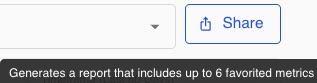
In the top right corner of the Athlete Summary, click the Share button next to the athlete’s name
-
The report will be generated and opened in a new page
-
You will be prompted to print the report
From here, you can:
-
Print the report
-
Save it as a PDF
-
Cancel printing to view the report in its own tab
Step 5: Review the Shared Report Layout
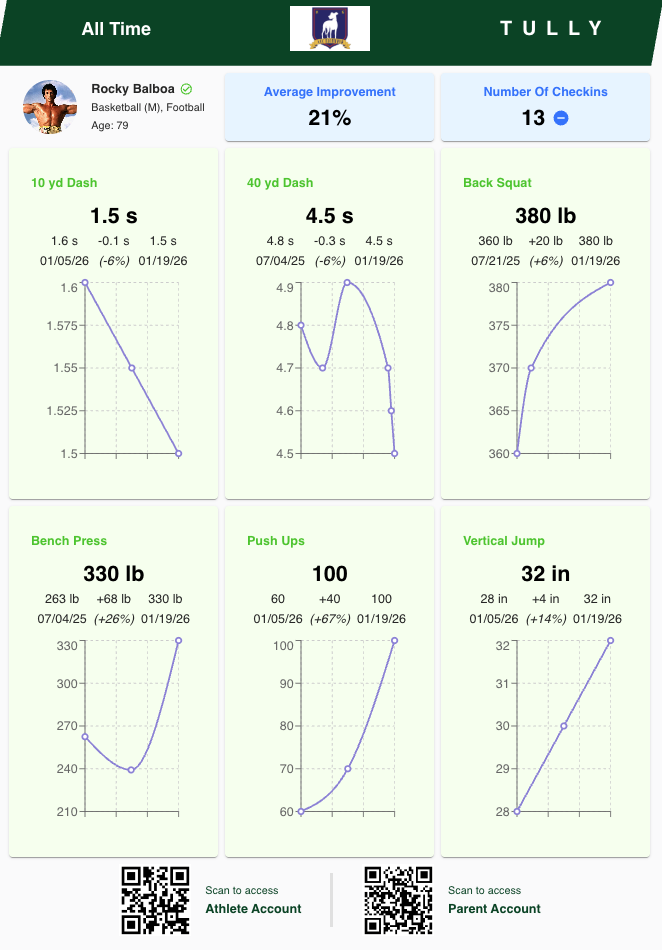
The shared report includes the following sections
Header
-
Selected date range on the left
-
Your organization logo in the center
-
Tully branding on the right
Athlete Overview
-
Athlete profile image (if uploaded)
-
Athlete name
-
Sports
-
Age
Performance Summary Tiles
-
Average improvement percentage
-
Number of check-ins
Favorite Metrics Section
-
Up to six selected metrics
The data cards are interactive, just like inside Tully:
-
Hover over data points to see the exact measurement value
-
View the date and time each data point was collected
QR Codes at the Bottom of the Report
At the bottom of the shared report, there are two QR codes:
-
Scan to access athlete account
-
Scan to access parent account
These allow athletes or parents to quickly log into Tully and explore additional data beyond the report.
Common Use Cases
Shared Athlete Summary reports are often used for:
-
Coaches sharing progress updates with athletes or parents
-
Athletes saving performance milestones
-
Recruiting materials
-
Social media posts
-
Personal performance records and memories
Key Takeaways
-
Only favorite metrics appear on shared reports
-
A maximum of six metrics can be displayed
-
The selected date range controls exactly what data is shown
-
Reports can be printed, saved as PDFs, or shared digitally
-
QR codes provide quick access back into Tully