
Navigating to Assessments
-
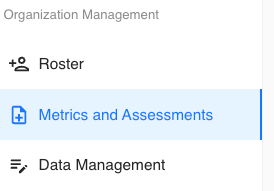
In the left-hand sidebar, go to Organization Management and click Metrics and Assessments.
-
Scroll down to the Assessments section.
Creating a New Assessment
When you click Add Assessment, a creation screen will appear containing the fields required to build your assessment:
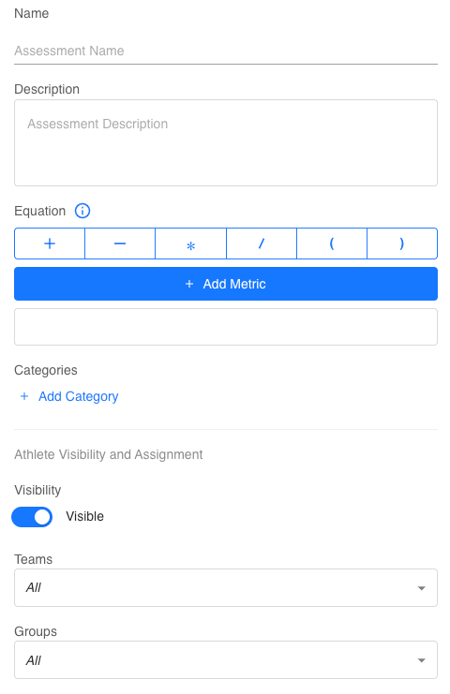
- Name
- Give your assessment a clear, descriptive name.
- Description
- Explain what the assessment measures, how it works, and why it matters to your organization.
- Equation
- This is where you build the calculation that produces your assessment score.
- Click Add Metric.
- Select the metric you want to include.
- Repeat this process to build your full equation.
- Equations use simple math symbols like plus, minus, multiply, or divide.
- This is where you build the calculation that produces your assessment score.
Example:
To create a 1,000 Pound Club assessment, combine the metrics for Back Squat (lbs) + Deadlift (lbs) + Bench Press (lbs).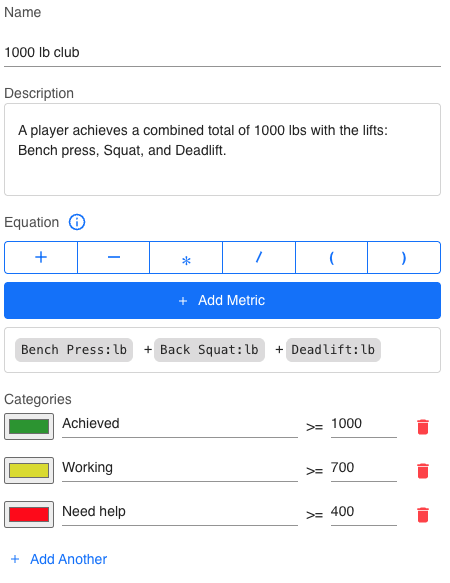
Adding Categories
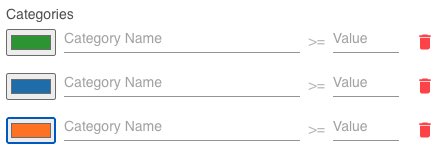
Categories allow you to define performance bands based on the assessment score.
Each category includes:
-
Name
-
Color code
-
Value for a greater-than-or-equal-to cutoff
You can create multiple categories to represent achievement levels, rankings, or score bands.
Athlete Visibility and Assignment
Visibility
- Toggle the Visible/Hidden setting to determine whether athletes can see the results of this assessment.
Assignments
- Select which Teams or Groups this assessment applies to.
Viewing and Managing Assessments
Once saved, your assessment appears in the Assessments table.
Assessments Table Columns
-
Name
-
Metrics
-
Categories
-
Teams
-
Groups
-
Visibility
Actions
-
Pencil icon: Quickly edit the assessment
-
Ellipses Menu: Add to favorites or delete the assessment

Summary
Assessments in Tully help coaches combine multiple performance metrics into meaningful insights. With customizable equations, visibility settings, categories, and team assignments, assessments become a powerful tool for tracking progress and motivating athletes.