
Step 1: Navigate to Account Settings
-
From anywhere on the Tully site, click your name in the top-right corner of the page.
-
In the dropdown menu, click the gear icon labeled ⚙️ Account Settings.

Step 2: Locate the Organization Logo Section
Once inside Account Settings, scroll down to the bottom of the page.
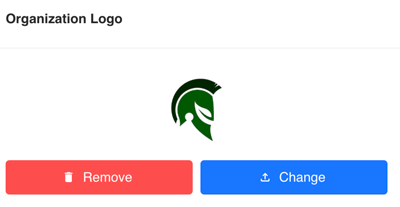
In the lower portion of the page, you’ll find the Organization Logo section.
Step 3: Upload Your Logo
Click the Add Logo button to upload an image file from your device.
After selecting your image, it will automatically display as your organization’s logo within Tully.
Step 4: Edit or Remove Your Logo
If you want to make changes later:
-
Click Change to upload a new image.
-
Click Remove if you’d like to delete the current logo entirely.
Tips
-
For best results, use a high-quality image file (PNG or JPEG).