
Step 1: Navigate to the Exercise Section
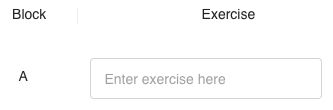
Within the program you’ve built, locate the Exercise column under the specific block (e.g., Block A) where you want to add an exercise.
Step 2: Add an Exercise
Click into the box labeled Enter exercise here.
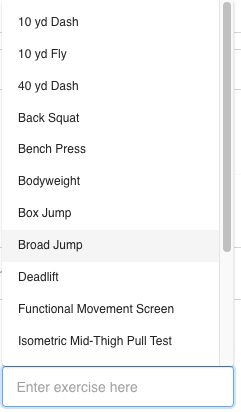
You’ll be presented with a list of available exercises that already exist within your system.
-
Option 1: Choose from your pre-built exercises already created in your metrics catalog.
-
Option 2: Type in a new exercise name as free text if it’s not already listed.
Step 3: Add Exercise Details
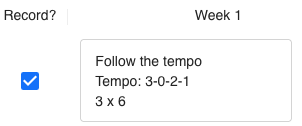
After selecting or entering your exercise, navigate to the Week 1 column to add training details.
Here you can include:
-
Sets and reps (e.g., 3 x 10)
-
Notes or cues (e.g., “Seated with Dumbbells”)
-
Any additional guidance your athletes need to perform the movement correctly
If you want athletes to record data for this exercise, toggle the Record? checkbox.
Step 4: Add More Exercises or Blocks
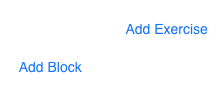
💪 At the bottom of each block, click Add Exercise to include additional movements.
🔨 To add an entirely new block (e.g., Block B), click Add Block and repeat the process.
Tips
-
Be consistent with exercise naming to maintain clean data tracking.
-
Add clear notes for athletes so they understand proper form and intent.
-
Remember to check “Record?” for any exercise you want tracked in performance reports.
Summary
Creating a new program in Tully gives coaches the flexibility to organize and deliver structured training plans to the right athletes. By setting visibility, assigning the correct teams or groups, and customizing program length, you can efficiently manage your organization’s programming workflow.