
Step 1: Navigate to Metrics and Assessments
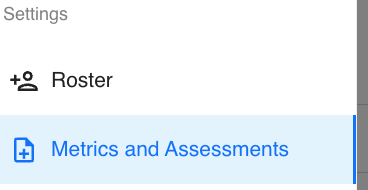
On the left-hand sidebar, scroll down to the Settings section and click Metrics and Assessments. This will open your Metrics Table, displaying all the existing metrics in your organization.
Step 2: Adding a Metric
Here you’ll see your organization’s metrics table, listing all the existing metrics.
In the top right corner of the table, click the blue “+ Add Metric” button to create a new one.

Step 3: Search or Create Your Metric
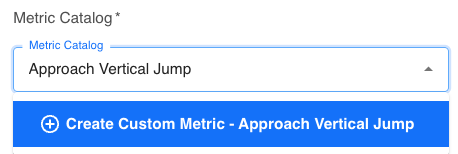
In the Metric Catalog dropdown, start typing the name of the metric you want to add.
-
If the metric already exists in the catalog, select the existing option instead of creating a new one.
-
If it does not exist, click the blue “Create Custom Metric – [Metric Name]” option that appears.
Step 4: Add Metric Details
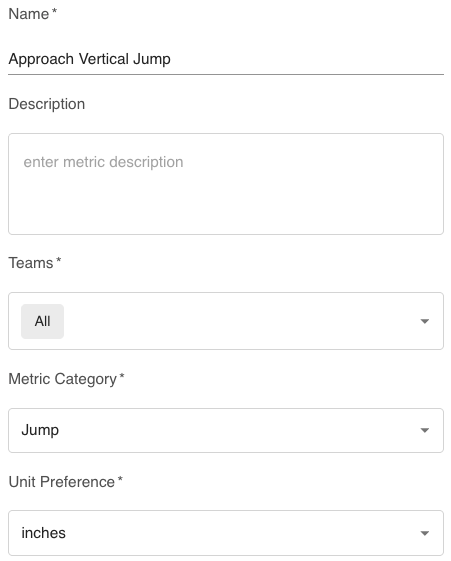
Once you’ve selected Create Custom Metric, you’ll be able to define your metric details:
-
Name – Automatically filled from your entry
-
Description – Add a clear explanation of what this metric measures
-
Teams – Select the specific team(s) this metric should apply to, or choose All
-
Metric Category – Choose the category that best fits this metric (e.g., Lift, Sprint/Agility, Weight, etc...)
-
Unit Preference – Select the appropriate measurement unit (e.g., lb, kg, seconds)
Step 5: Save the Metric
After entering all required details, click the blue “Add” button in the bottom right corner to save your new custom metric.
Your custom metric is now added and can be used for tracking data within your teams.
Quick Tips
-
Always search first before creating a new metric to avoid duplicates in your system.
-
Be consistent with naming conventions to make reporting and data entry easier.
-
Metrics can later be edited or deleted within the Metrics and Assessments section.