
Step 1: Navigate to the Roster
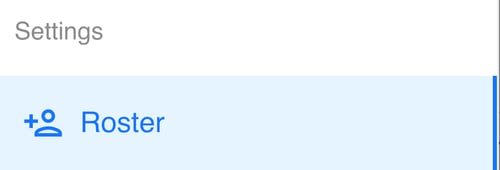
On the left sidebar, scroll down to the Settings section and click Roster.
Step 2: Locate the Athlete
Once you are in the Roster, find the athlete you want to update.
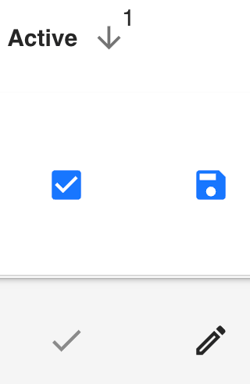
On the far right of their row, click the pencil icon to edit.
Step 3: Update Active Status
Inside the edit view, locate the Active column. You’ll see a checkbox:
-
A blue checkmark means the athlete is Active.
-
An empty box means the athlete is Inactive.
Click the box to toggle the athlete’s status as needed.
Step 4: Save Your Changes
Once the correct status is selected, click the Save button to confirm your update.
💡Tip
Keeping inactive athletes marked correctly helps keep your rosters clean and reports accurate.