
Option 1: Manual Entry on the Site
-
Navigate to Bulk Data Entry
-
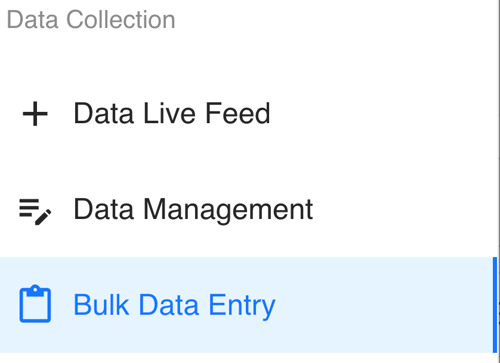
On the left sidebar of Tully, scroll down to the Data Collection section and click Bulk Data Entry.
-
-
Select a Metric
-
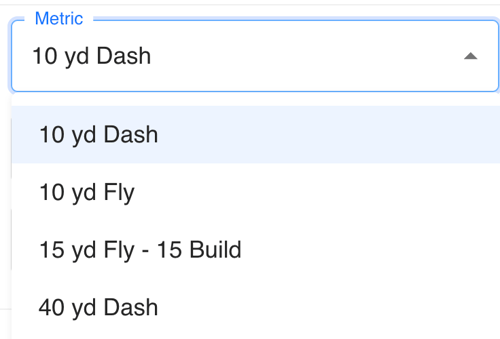
In the Metric dropdown, choose the metric you want to add historical data against.
-
You can also refine your view using filters for Teams, Groups, Gender, Years, and Age Range.
-
-
Set a Historical Date
-
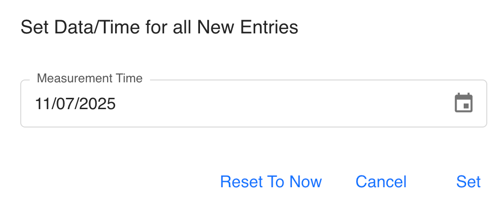
On the top right of the table, click the Default Date button. It will default to the current date and time.
-
Change this to the specific date and time that you want your data to be recorded against.

-
-
Enter Data Manually
-
Use the table interface to enter data for each athlete under the appropriate column for the chosen metric.
-
Once you’re finished, the historical data will be saved to those athletes’ records.
-
Option 2: CSV Upload by Tully Staff
If your historical data set is large, Tully’s support team can help you import it directly.
-
In the top right of Tully, click the Question Mark (?) icon
-
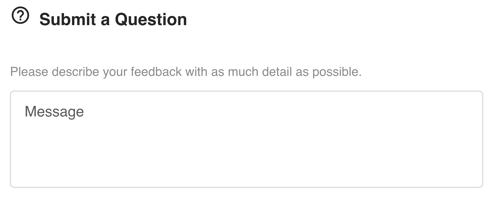
Select “Question?” to open the submission form
-
In the message box, write:
“I have a CSV sheet of historical data that I would like to be imported for my athletes.”
-
Click Send.
Tully staff will receive your message and reply via email with instructions for securely sending your CSV file.


Summary
-
Use Bulk Data Entry for quick manual uploads and date-specific entries.
-
Use the Submit a Question tool to request a CSV import for large historical data sets.
-
Once processed, your historical data will appear in your organization’s reports and metrics as if it had been entered on the original dates.