
Step 1: Navigate to the Program of Interest
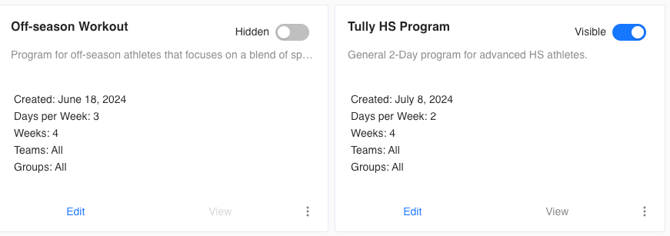
On the far left sidebar of Tully, navigate to the Programming section and select the Programs feature.
From here, choose the program of interest and click edit.
Step 2: Locate the Exercise
Within your selected program, find the exercise you want to assign adaptive percentages to.
Click the blue bar chart icon next to the exercise description box.
😕 The bar chart icon is greyed out and not blue? 💡 You need to select an exercise that is a created and saved metric in your metric list (How to add a created metric).

Step 3: Adding the Percentage
- Navigate to the “Enter reps/notes here” text box under the week number.
- Click into the box exactly where you want the percentage to live for best visibility and clarity.
- From there, click into the blue bar chart icon (when you hover over it, you’ll see a tooltip labeled “Insert percent max placeholder”).
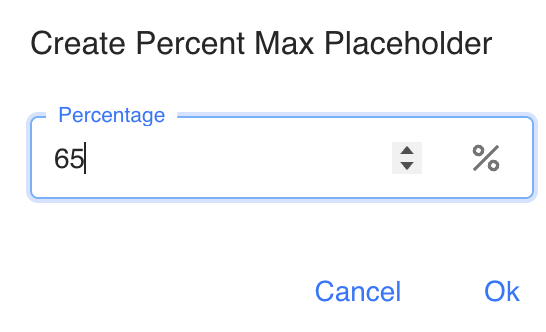
- After clicking the icon, a window titled “Create Percent Max Placeholder” appears.
- Enter your desired percentage (for example, 65) and click OK. Write the percentage value.
Step 4: View and Save the Percentage
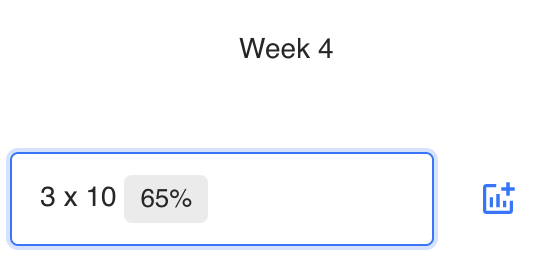
Once added, your chosen percentage (e.g., 65%) will appear where you clicked into the text box.When athletes view their program, they’ll see either:
-
Their calculated load (if they have a max value recorded for that exercise), or
-
The displayed percentage value (if no max data exists).
📘 Note: If the athlete has not entered a max value for that metric (aka Exercise), they’ll only see the written percentage (e.g., 65%) instead of a number.
Coach Awareness: How Adaptive Percentages Pull Data
Adaptive percentages are automatically calculated based on the most recent data submitted for the chosen metric.
That means:
-
The athlete’s latest metric submission determines the value used for percentage-based programming.
-
If a coach or athlete enters a new data point for that metric, all adaptive percentages tied to it will update to reflect the most recent max.
-
Coaches should be mindful of when and how new data is entered to ensure percentages reflect accurate and current performance levels.
Tip: If testing results are outdated or inconsistent, review the metric’s data entries to confirm that the current max represents the athlete’s intended training target.
Example Use Case
A coach wants athletes to back squat at 70% of their max for the day’s workout. Instead of calculating weights manually, the coach adds “3 x 10 @ 70%” using adaptive percentages. Each athlete’s load automatically adjusts based on their individual max, ensuring everyone trains at the correct intensity.