
Step 1: Access the Organization QR Code
In the top right corner of the Tully dashboard, coaches will see three icons: a plus sign, a QR code icon, and a question mark icon next to their name.
Click on the QR code icon to open your organization’s QR code.
Step 2: Display or Share the QR Code
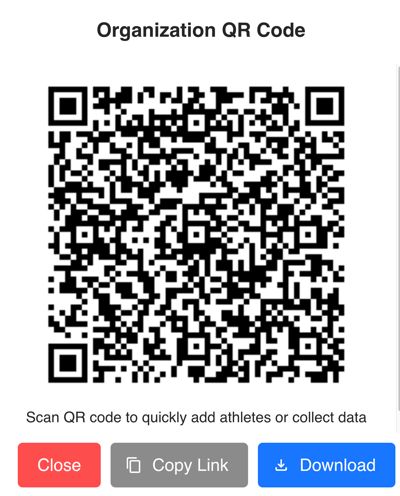
Once clicked, the Organization QR Code window appears.
From here, coaches can:
-
Display the QR code on a screen for athletes to scan
-
Download the QR code using the blue Download button in the bottom right corner
-
Copy the link to share via text, email, or message boards
Most organizations choose to print the QR code or display it on a screen, or wall for easy scanning by athletes.
Step 3: Athlete Scans the QR Code
When athletes scan the QR code with their mobile device, they’re taken directly to the Data Entry Form screen.
Here, they’ll see a dropdown to select their name if it already exists in the system, or they can choose to add themselves.
To create a new profile, athletes will scroll down and click the blue Add New Athlete button.
Step 4: Complete the Add Person Form
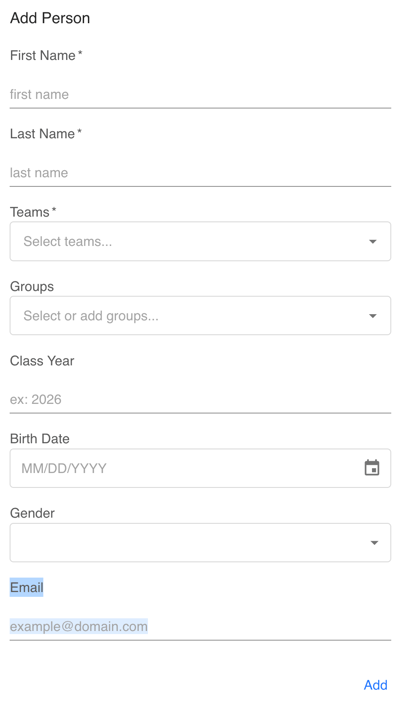
After clicking Add New Athlete, the Add Person form appears.
Athletes will enter the following details:
-
First Name*
-
Last Name*
-
Teams* (select from available options)
-
Groups (optional, choose from available or add new)
-
Class Year (expected graduation year)
-
Birth Date
-
Gender (Male, Female, or Prefer not to say)
-
Email (personal or school email)
Note: Fields marked with * are required.
Once all information is filled out, click the blue Add button at the bottom right.
Step 5: Profile Created
After submitting, the athlete’s profile is added to your Tully organization. They can now log in, track performance, and participate in team data collection.
Tip
Encourage athletes to double-check that their name and team selections are accurate to ensure data is logged correctly in your organization.