
Accessing Bulk Data Entry
-
Navigate to the left-hand sidebar
-
Click on Bulk Data Entry
Once inside, you will see filters at the top and a toggle in the top right to switch between Metric and Check-In modes.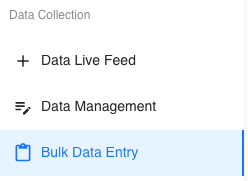
Understanding Metric vs. Check-In
Metric Mode
-
Used to enter performance data tied to specific metrics (e.g., lifts, times, scores).
Check-In Mode
-
Used to track athlete attendance, similar to a kiosk-style check-in system.

Using Metric Mode
Step 1: Apply Filters
Use the filters at the top to refine which athletes and data you want to work with:
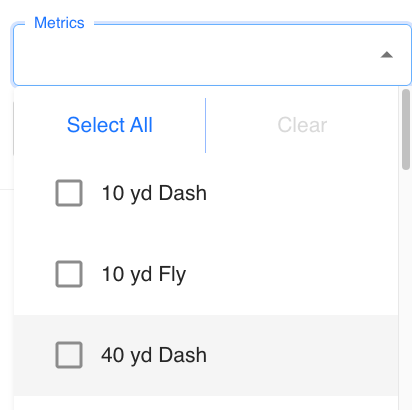
- Metrics: Select one or multiple metrics
- Teams, Groups, Gender, Years, Age Range, Checked In After, Names
- Measurement Day: Choose the date you want to enter data for
Step 2: Select Metrics
-
Choose one or more metrics from the dropdown
-
The table will automatically populate with columns based on your selection
-
Columns will appear in the order you select them
-
You can reorder columns by clicking and dragging the column headers.
-
Step 3: Enter Data
There are two ways to begin entering data:
- Click the pencil icon on the far right
- Double-click directly into a cell
Once editing is enabled:
- Enter data into each cell
- Press Tab to move between cells without using your mouse
- Continue tabbing across columns and down rows
When you tab to the next athlete, the previous row is automatically saved.

Step 4: Save and Edit Data
-
Data saves automatically as you move through the table
-
You can also click Save manually at any time
-
To update a value:
-
Click into the cell
-
Modify the data
-
Click Save or press enter
-
Step 5: Add Additional Entries
-
Click Entry to add a new data point
-
Optionally log an injury if needed
Step 6: Delete Data
-
Click the trash can icon to remove an entire row of data
Step 7: Edit Historical Data
-
Use the Measurement Day filter to select a past date
-
Modify previously entered data directly within the table
Using Check-In Mode
Step 1: Toggle to Check-In in the top right

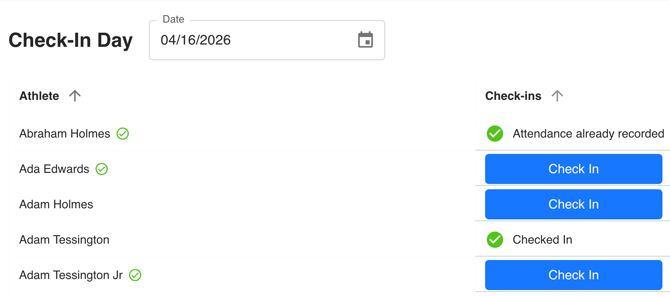
Step 2: Select a Check-In Day (date)
-
The table will display:
-
Athlete names
-
A Check-In button for each athlete
-
Step 3: Check In an Athlete
-
Click the blue Check-In button
-
This logs attendance for the selected date.
Tips for Efficient Data Entry
-
Use the Tab key to quickly move through the table
-
Select metrics in your preferred order to control column layout
-
Take advantage of automatic saving to move quickly
-
Use filters to narrow your focus and reduce clutter