
Accessing Bulk Data Entry
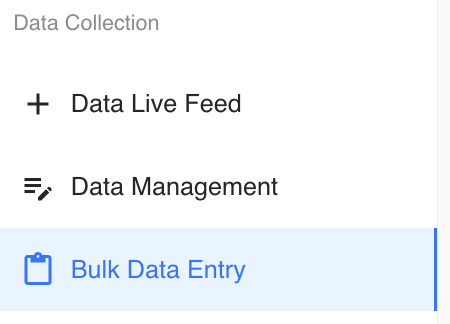
On the left-hand sidebar of Tully, navigate to Data Collection. Click Bulk Data Entry.
Using Filters
Bulk Data Entry includes the same filters used throughout the Tully system. These filters work consistently in every feature. The available filters are:
-
Metrics, Teams, Groups, Gender, Years, Age Range, Checked In After, New Sheet (used for entering multiple metric entries), Search by Athlete Name
Use these filters to narrow the athletes and metrics you want to work with before entering data.
Selecting Multiple Metrics
The multi metric workflow allows you to select several metrics at once and enter data for all of them within a single table.
-
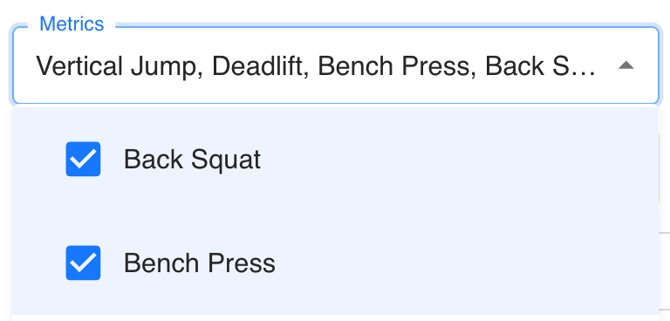
Open the Metric dropdown.
-
The first metric in the list will be selected by default. Clear this selection if you would like.
-
Scroll through the list and choose all the metrics you want to record data against.
-
The order in which you select the metrics determines the order they appear in the table. This is helpful if your testing sequence follows a specific workflow/order.
Setting the Default Date
Before entering data, confirm the date you want associated with the entries.
-
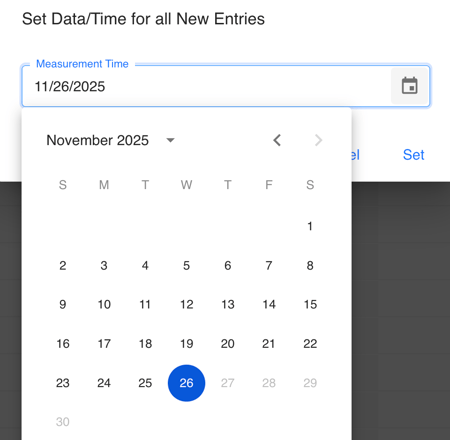
The Default Date in the top right of the table is automatically set to Now, which represents the current date and time.
-
Click the Now button to open the date selector.
-
Choose the exact date and time you want to record the data against.

You can also edit the date directly in the table:
-
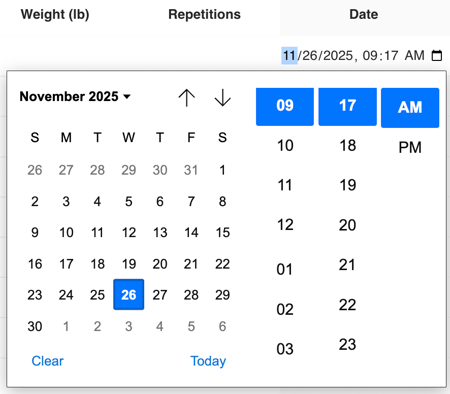
Double click the date in the athlete row, or click the pencil icon.
-
Click the calendar icon.
-
Select the desired date and time.
Entering Data in the Table
Once your filters and metrics are set, you can begin inputting values.
-
Click the pencil button on any row, or double click directly in a cell.
-
Enter the value for the athlete and metric.
-
Continue this for all required metrics and athletes.

Reordering Units Within a Metric
Some metrics include multiple units, such as weight and repetitions. You can reorder these within a metric column to match your preferred entry workflow.
-
Click and drag the unit label (for example, Reps or Weight) to reorder how the input fields appear.
-
This can make entering data for exercises like bench press, squat, or deadlift more efficient.
Editing or Deleting Data
You can correct mistakes quickly in the table:
Edit a Value
-
Double click the cell or click the pencil icon.
-
Update the value and save.
Delete a Value
-
Double click the specific cell and clear it, or delete it through the edit view.
Delete an Entire Row
-
Use the trash can icon on the far right of the row.
Example Use Case
A coach is running a full testing battery and collects results on paper during the session. Once testing is complete, the coach sits down to enter all results into Tully at once using Bulk Data Entry Multimetric.
The coach begins by creating the list of exercises included in the assessment, such as the 10 yard sprint, 40 yard sprint, vertical jump, broad jump, back squat, and bench press. In Bulk Data Entry, the coach opens the metric dropdown and selects each of these metrics in the same order they were tested. This organizes the table so the columns match the exact sequence of the assessment.
With the metrics set, the coach updates the default date to reflect the testing day and begins entering data for each athlete. Using the pencil icon or clicking into the exact cell, the coach moves across each row, inputting sprint times, jump distances, and strength numbers quickly and accurately. This workflow allows the coach to transfer all paper and pencil data into Tully in a single streamlined process.