
Step 1: Accessing Data Management
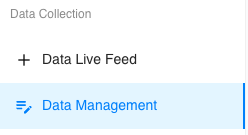
On the left-hand sidebar, navigate to the Data Collection section and click into Data Management.
Using Filters to Locate the Metric Entry
Because organizations often have high volumes of data, filtering is the most efficient way to locate a specific metric value. By searching and selecting the specific values you will decrease the amount of data shown in the table.
You can filter the data table using the following options:
-
Metric, Teams, Groups, Gender, Years, Active / Inactive, Age Range
-
A Clear Filters button is available to reset all selections.

Table Columns
The data table includes the following columns:
-
Name, Metric, Submission, Calculated Max, Time
- These are common columns; The columns do change based on metric selection
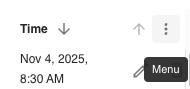
- You can customize column visibility by clicking the ellipses in the table header and selecting Manage Columns.

Using Advanced Filtering (Ellipses Menu)
If your organization has hundreds of entries for a single metric, the fastest way to pinpoint the exact data point is using the ellipses menu.
-
Click the ellipses in the table header.
-
Select Filter.
-
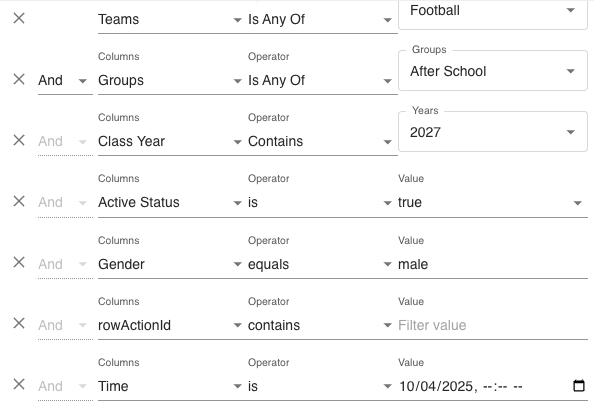
Set up your filter using three components:
-
Column
-
Operator
-
Value
-
Example: Filtering by a Specific Date
Column: Time
Operator: Is
Value: Choose the exact date the incorrect data point was entered
This will filter the table down to only the entries recorded on that date.
If you know the exact time as well, you can filter even more precisely.
Operator Options
When filtering by Time, your available operators are:
-
Is
-
Is not
-
Is after
-
Is on or after
-
Is before
-
Is on or before
-
Is empty
-
Is not empty
Editing or Deleting a Metric Value
Once you have filtered and found the incorrect entry:
To Edit the Value
-
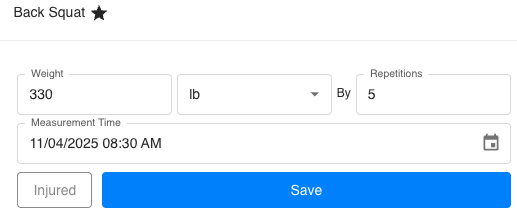
Click the pencil icon next to the entry.
-
Update the value to the correct number.
-
Save your changes.
To Delete the Value
-
Click the Trash Can option on the entry row in the table.
-
Click Delete.
The system will immediately update and reflect the corrected data.