
Navigating to Daily Attendance
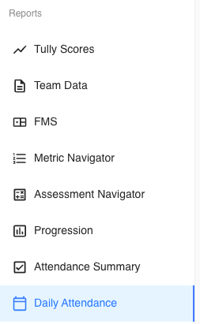
On the left-hand sidebar of Tully, navigate to the Reports section and click Daily Attendance.
Using Filters
At the top of the Daily Attendance page, there are several filters to help refine your view of attendance data:
- Date: Select a specific day to view attendance for that date. This filter allows you to pinpoint one day in time and see exactly who checked in.
- Teams: Filter by one or more teams to see attendance specific to those groups.
- Groups: Narrow attendance data by subgroups within teams.
- Gender: Filter attendance results by male or female athletes.
- Years: Filter based on athlete year (e.g., freshman, sophomore, etc.).
- Age Range: View attendance by specific age brackets.
Viewing Attendance Results
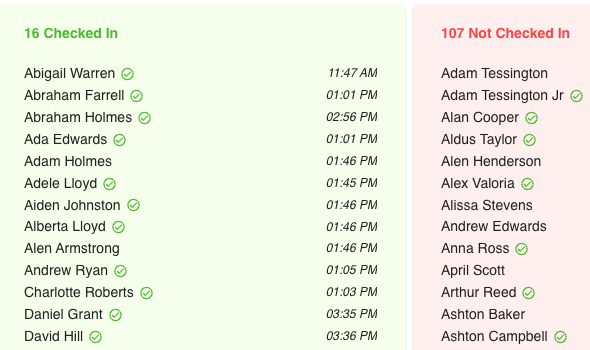
Once a date and any desired filters are selected, the page displays two main lists:
- Checked In: Shows athletes who have successfully checked in on that day, along with the exact time of their check-in.
- Not Checked In: Shows athletes who did not check in on that date.
*Each list includes the athlete’s name and a checkmark indicator.
Exporting Attendance Data
At the top of the page, click Export to download a record of attendance data for the selected date and filters. This is helpful for sharing attendance summaries with other coaches or keeping records.
Example Use Case
A strength coach may use the Daily Attendance report to verify which athletes attended morning training. If a sport coach, such as the football coach, wants to know who participated that day, the strength coach can open this report, select the date, and immediately provide a complete list of who checked in and who did not.