
Navigating to Bulk Data Entry
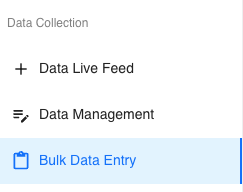
On the left-hand sidebar of Tully, navigate to the Data Collection
section and click into Bulk Data Entry.
Using the Filters
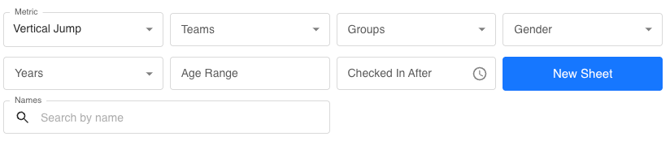
At the top of the page, you’ll see a set of filters that allow you to narrow down which athletes you’re viewing or entering data for.
-
Metric: Select the exercise or measurement you want to enter data for (e.g., Back Squat, Vertical Jump).
-
Teams: Choose the specific team you’d like to view or enter data for.
-
Groups: Filter by specific training groups within a team.
-
Gender: Choose between male, female, or all athletes.
-
Years: Filter athletes by their graduation or class year.
-
Age Range: Adjust to display only athletes within a selected age range.
-
Checked In After: Set a time to show only athletes who checked in after that specific time.
-
Search Bar: Quickly search for an individual athlete by name.
Using the Data Table
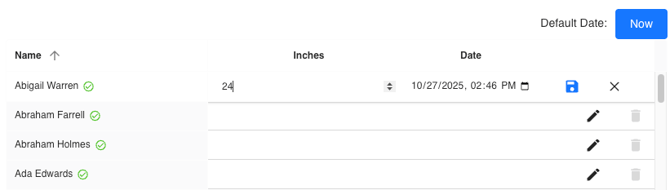
Below the filters is the main data table, which functions like a spreadsheet for fast and flexible data entry.
-
Name: Displays the athlete’s name.
-
Metric Value: Input field for the recorded performance (e.g., weight, jump height, sprint time). There may be 2 columns for this, such as weight and reps.
-
Date: Automatically defaults to the current date but can be edited as needed.
-
✏️ Edit: Modify existing entries.
-
🗑️ Delete: Remove any incorrect entries.
🆕 If you’d like to start a new data set, click the New Sheet button to open a blank entry sheet.
Metric vs. Check-In
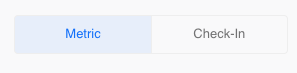
In the top-right corner of the Bulk Data Entry page, you’ll see two options: Metric and Check-In.
Metric Mode
-
Used for entering performance data such as lift weights, sprint times, or testing results.
Check-In Mode
-
Switching to Check-In changes the table view to focus on attendance.
-
Each athlete will have a blue Check In button.
-
Clicking the button records attendance immediately.
-
Once recorded, the entry changes to show a green checkmark and the text “Attendance already recorded.”
-
Example Use Case: A Coach’s Lifting Session
Let’s imagine a typical lifting day using Bulk Data Entry:
-
Before the session:
-
The coach opens Bulk Data Entry on a laptop or iPad.
-
They toggle to Check-In mode and filter down to the specific team or group training at that time.
-
-
As athletes arrive:
-
Athletes or the coach quickly click Check In next to each name to record attendance. Capturing attendance quickly.
-
-
During the lift:
-
Once everyone is checked in, the coach toggles to Metric mode.
-
The coach selects the metric of the day (e.g., Vertical Jump) and begins entering data in real time as athletes complete their attempts.
-
-
Tracking multiple sets or attempts:
-
After logging the first round of attempts, the coach clicks New Sheet to create a clean table for the next set.
-
Each new sheet represents a new attempt or training set for that same metric.
-
🚀 This process allows coaches to seamlessly manage attendance, wellness, and performance data in one streamlined workflow.