
Step 1: Navigate to the Roster
-
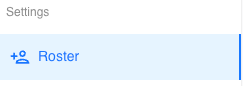
From the left hand sidebar in Tully, click Settings and select Roster
-
This will open your full roster table.
-
Step 2: Select Athletes
-
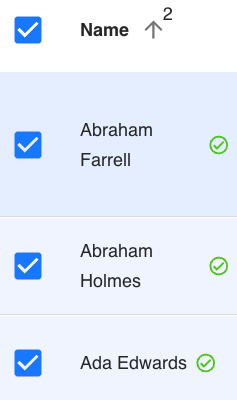
On the left side of the roster table, use the checkboxes next to each athlete’s name
-
You can:
-
Select individual athletes one by one
-
Use the top checkbox to select all athletes on the roster
-
-
Once at least one athlete is selected, the Bulk Edit button will appear above the Name column.
Step 3: Open Bulk Edit
-
Click Bulk Edit and a pop up window will appear showing the number of athletes you are about to update
Step 4: Choose What You Want to Edit
Inside the Bulk Edit modal:
-
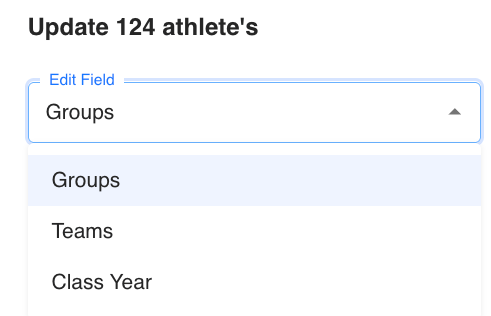
Edit Field
-
Choose which field you want to update:
-
Groups, Teams, or Class Year
-
-
-
Add or Remove
-
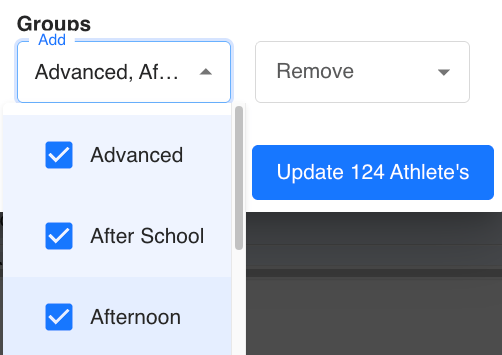
Below the Edit Field dropdown, you will see two options:
-
Add: Assign the selected group, team, or class year to the athletes
-
Remove: Remove the selected group, team, or class year from the athletes
-
-
-
Select the Value
-
Choose the specific group, team, or class year you want to add or remove
-
Step 5: Apply the Update
-
Click the blue Update Athlete button in the bottom right of the modal
-
Tully will apply the changes to all selected athletes at once
What Happens After the Update?
-
The selected athletes will immediately reflect the added or removed group, team, or class year
-
No additional saving or confirmation is required
When to Use Bulk Edit
-
Moving multiple athletes into or out of groups
-
Updating teams at the start or end of a season
-
Adjusting class years across a large roster