
Navigating to Attendance Summary
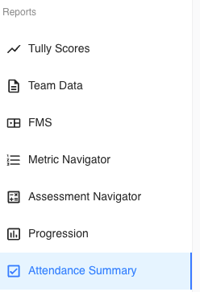
On the left-hand sidebar of Tully, navigate to the Reports section and click Attendance Summary.
Using Filters
Once inside the Attendance Summary report, you’ll see multiple filters at the top of the page:
-
Teams: Select one or multiple teams to view attendance data specific to those groups.
-
Groups: Filter by groups within a team to narrow the results further.
-
Gender: Choose to view male, female, or all athletes.
-
Years: Select the year(s) of interest.
-
Age Range: Narrow results to specific age brackets.
-
Time Frame: Define the date range for your report.
Attendance Summary Widgets
Below the filters, you’ll find two widgets that give a snapshot of the data:
- Total Check-ins: The total number of check-ins during the selected time frame.
- Average Check-ins Per Athlete: The average number of check-ins across all athletes included in the report.

Data Table
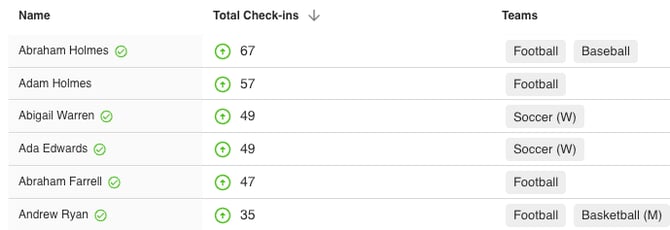
The main data table displays three columns:
- Name: The athlete’s name.
- Total Check-ins: The number of times that athlete has checked in during the selected period.
- Teams: The team(s) that athlete is associated with.
At the top left of the table, there is an Export button that allows you to download the report for further analysis or record keeping.
Example Use Case
A coach might use the Attendance Summary during a Summer Lifting Program to measure athlete participation.
By setting the time frame filter from June 1 to July 31, the coach can quickly identify:
- Which athletes attended most frequently
- Which athletes had lower attendance
- Overall participation trends within that period