
How Athletes, Clients, and Parents Log Into Tully
Once an account has been created, users can log into Tully in two main ways:
-
Scan a Tully QR code and log in as a user
-
Open a browser on any device and go to https://portal.tully.app/
-
After accessing Tully, users will either be taken directly into the platform or routed to portal.tully.app/organizations.
Selecting an Organization
If the user is connected to multiple organizations, they will see a list under My Organizations and can choose which one to enter.
-
If the user is only connected to one organization, they simply select it and click Enter.
-
Once entered, the user is brought into the full Tully experience.
Left Hand Navigation Options
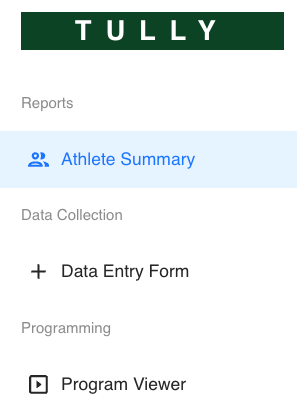
Users can navigate through Tully using the left hand sidebar.
Athlete or Client Summary
-
Returns the user to the main summary dashboard at any time.
Data Entry Form
-
Allows athletes and clients to enter performance or session data directly using the same guided data entry experience available through QR codes and other entry methods.
Program Viewer
-
Program Viewer allows athletes and clients to view training programs assigned to them by their coach or trainer.
-
From Program Viewer, users can:
-
Select the assigned program
-
Choose the correct week and training day
-
View exercises, sets, reps, blocks, and prescriptions
-
Athlete Summary Page
This dashboard provides a complete view of the individual’s information, including:
-
Performance metrics such as Tully Score and other tracked data
-
Historical results and trends
-
Attendance and logged entries
- For more information visit:
From this view, users can click into individual metrics, review performance history, and share their summary if wanted.
Using Summary Widgets
-
Each widget in the summary represents a specific performance metric.
-
Athletes, clients, and parents can interact with each widget in several ways to better understand performance, progress, and rankings.
Rankings
On each metric widget, there is a button that displays 1, 2, 3 with horizontal lines. When selected, this opens a ranking view that shows how the athlete or client stacks up relative to peers based on how they are tagged within the organization.
Ranking views may include comparisons across:
-
Overall organization
-
Teams
-
Groups
-
Gender
-
Other applicable classifications
This ranking feature is the best way for athletes and clients to understand where they stand within their assigned groups.
Privacy note:
-
Athletes, clients, and parents do not have access to view other individuals’ names
-
Rankings are shown without identifying other users
Viewing Progress and Historical Data
Within each metric widget, users can explore performance history using different views:
-
Line chart icon
Displays growth and performance trends over time -
Grid icon
Shows a list view of recent or historical data points
These tools help athletes, clients, and parents clearly see improvement, consistency, and long term development.
Understanding Metric Descriptions
Each metric widget includes a description that explains:
-
What the metric measures and what the value represents
This ensures users understand the purpose behind each data point, not just the number displayed.
Left Hand Navigation Options
Users can navigate through Tully using the left hand sidebar.
Athlete or Client Summary
-
Returns the user to the main summary dashboard at any time.
Data Entry Form
-
Allows athletes and clients to enter performance or session data directly using the same guided data entry experience available through QR codes and other entry methods.
Program Viewer
-
Program Viewer allows athletes and clients to view training programs assigned to them by their coach or trainer.
-
From Program Viewer, users can:
-
Select the assigned program
-
Choose the correct week and training day
-
View exercises, sets, reps, blocks, and prescriptions
-
Top Right Action Menu
In the top right corner of Tully, users will see a plus (+) button with quick access tools.
Collect Data
-
Launches a fast data collection experience identical to other data entry methods.
Show Timer
-
Opens the built in training timer, which includes:
-
Stopwatch mode
-
Countdown timer with customizable minutes and seconds
-
Interval timer with configurable rounds, work time, and rest time
-
Optional sound alerts
-
Help and Support Options
Selecting the question mark (?) icon provides access to:
-
The Help Desk
-
The option to send a message to the Tully team
Profile and Account Settings
Clicking the user’s name in the top right opens account and profile options.
From here, users can:
-
View My Profile including name and email
-
Resend their confirmation email
-
Access My Account
-
Switch organizations
-
Log out of Tully
Summary
The Tully portal gives athletes, personal training clients, and parents full visibility into performance data, training programs, and progress history. Users can track improvement, enter data, review rankings, and view assigned programs, all within a secure and easy to navigate experience that protects user privacy.