
Entering Data Using the Organization QR Code
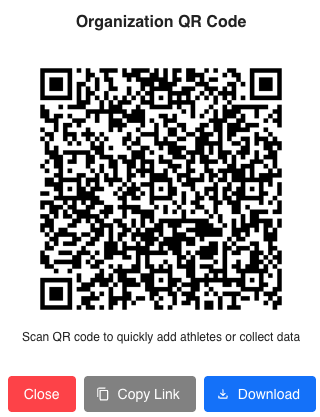
Each Tully organization has a unique QR code used for athlete check-in and data entry.
To access your organization’s QR code:
-
In the top right corner of Tully, click the QR code icon located between the plus (+) and question mark (?) icons.

-
You can choose to:
-
Display the QR code on screen – for example, use it as a check-in station or kiosk.
-
Copy the link – this allows you to share the link by text, email, or message boards.
-
Download the QR code – print and post it in your facility or include it in onboarding materials for new athletes.
-
Athlete Experience After Scanning the QR Code
When an athlete scans the QR code, they are directed to a simple Data Entry Form that guides them through attendance, wellness, and data entry.
Step 1: Select Name
-
-
Athlete selects their name from the dropdown list.
-

Step 2: Check In
-
-
After selecting their name, athletes click the blue “Check In” button to log their attendance.
-

Step 3: Pulse Survey
-
-
Once checked in, athletes are presented with the Pulse Survey, a short wellness check to track readiness and recovery.
-
Athletes can choose to complete the survey or click Skip to move on.
-
Step 4: Metric Data Entry
-
-
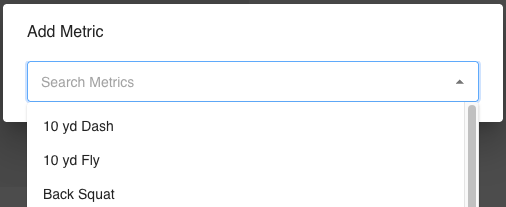
After the Pulse Survey, athletes can log data for specific exercises or tests.
-
From the blue Quick Data Collection Button, select the desired metric (e.g., Back Squat).

-
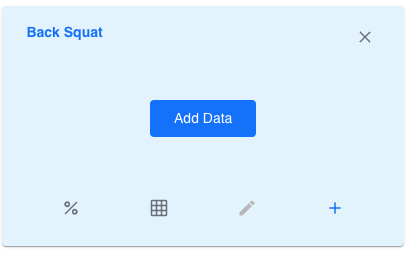
A blue Add Data button will appear. Click this, or the blue + button.
-
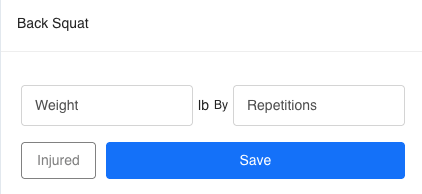
Now they enter their respective values such as weight and repetitions.
-
If relevant, select Injured to note a modified or missed session.
-
Click Save to record the entry.
- If there was an error in the entry the athlete can select the pencil button and edit or delete the entry
-
-
-
- They can enter as many sets as they need for the first metric chosen.
- The athlete can continue to add additional metrics by using the + button in the blank boxes that appear.
Best Use Case
The QR code method is ideal for:
-
Quick attendance and readiness tracking
-
Team-wide kiosk setups for fast data collection
-
Simplified athlete access without needing full login navigation
All data entered through the QR code syncs automatically with your organization’s Tully account, giving coaches real-time insights into attendance, wellness, and performance metrics.